Introduction
As a LearnDash site owner, you can use MemberDash to control who can access specific content across your site. Whether you want to restrict individual posts, pages, lessons, or broader sections like categories and menus, MemberDash offers flexible tools to tailor content visibility based on membership levels.
Before You Begin
Make sure:
- The MemberDash plugin is installed and active.
- You have created at least one membership to apply content restrictions.
Restricting Individual Content
You can restrict posts, pages, lessons, quizzes, topics, or other custom post types using two methods.
Method 1: Restrict Content via the Page/Post Editor
- Open the WordPress editor for the post, page, lesson, quiz, or topic you want to restrict.
- Locate the Membership Access box in the right sidebar.
- Click the switch to Enable Protection.
- Select one or more memberships that should have access to the content.
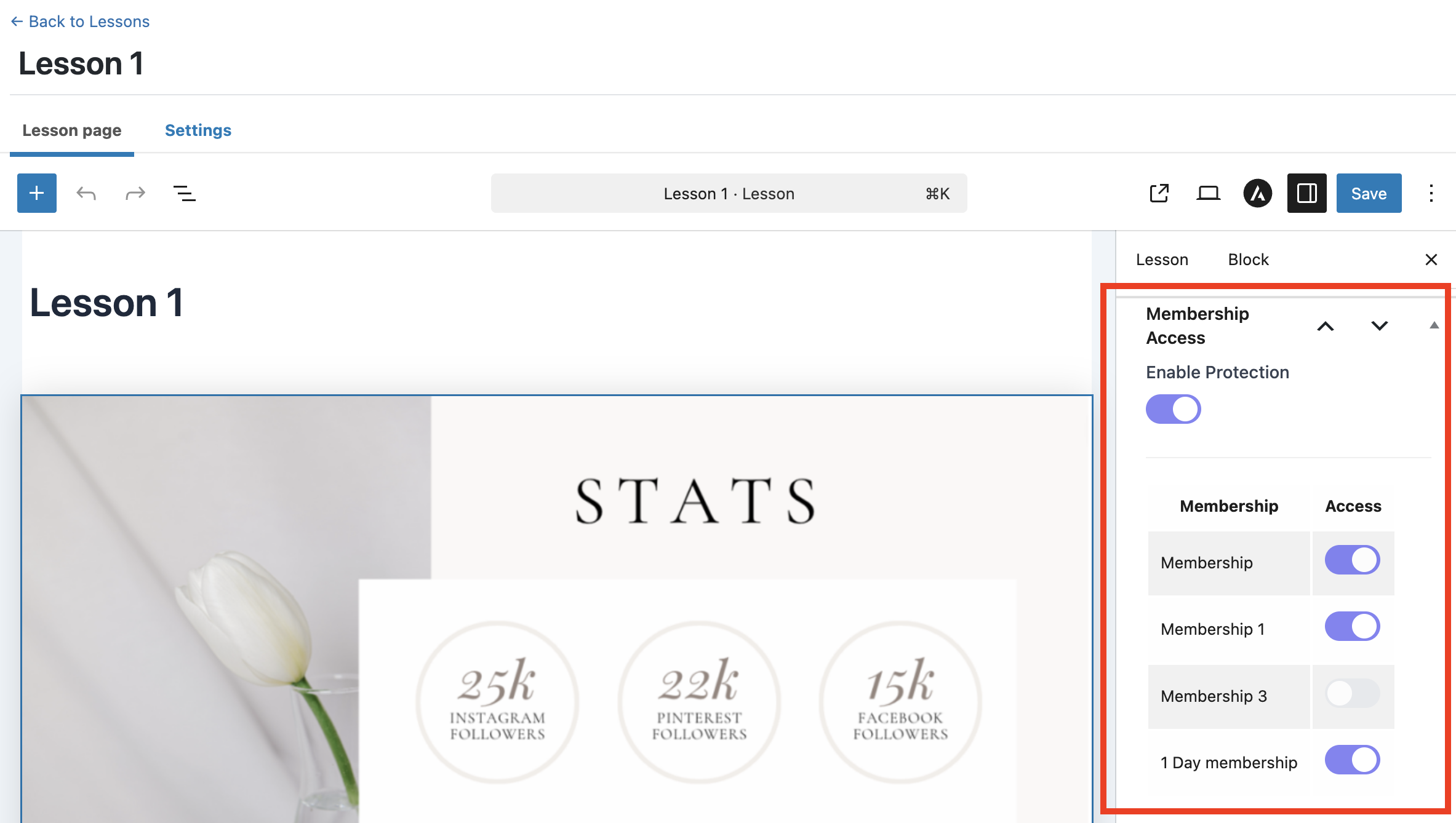
Best for: Protecting individual pieces of content.
Method 2: Restrict Content via the Protection Rules Panel
- Navigate to MemberDash > Protection Rules.
- Choose the type of content to protect:
- Page or Post
- Custom Post Type (for LearnDash lessons, topics, or quizzes)
- Use the drop-down filters:
- Filter by date (for posts and pages)
- Filter by custom post type (e.g., All Lessons)
- Select one or more pieces of content to protect.
- Use the Bulk Action drop-down to assign one or more memberships to the selected content.
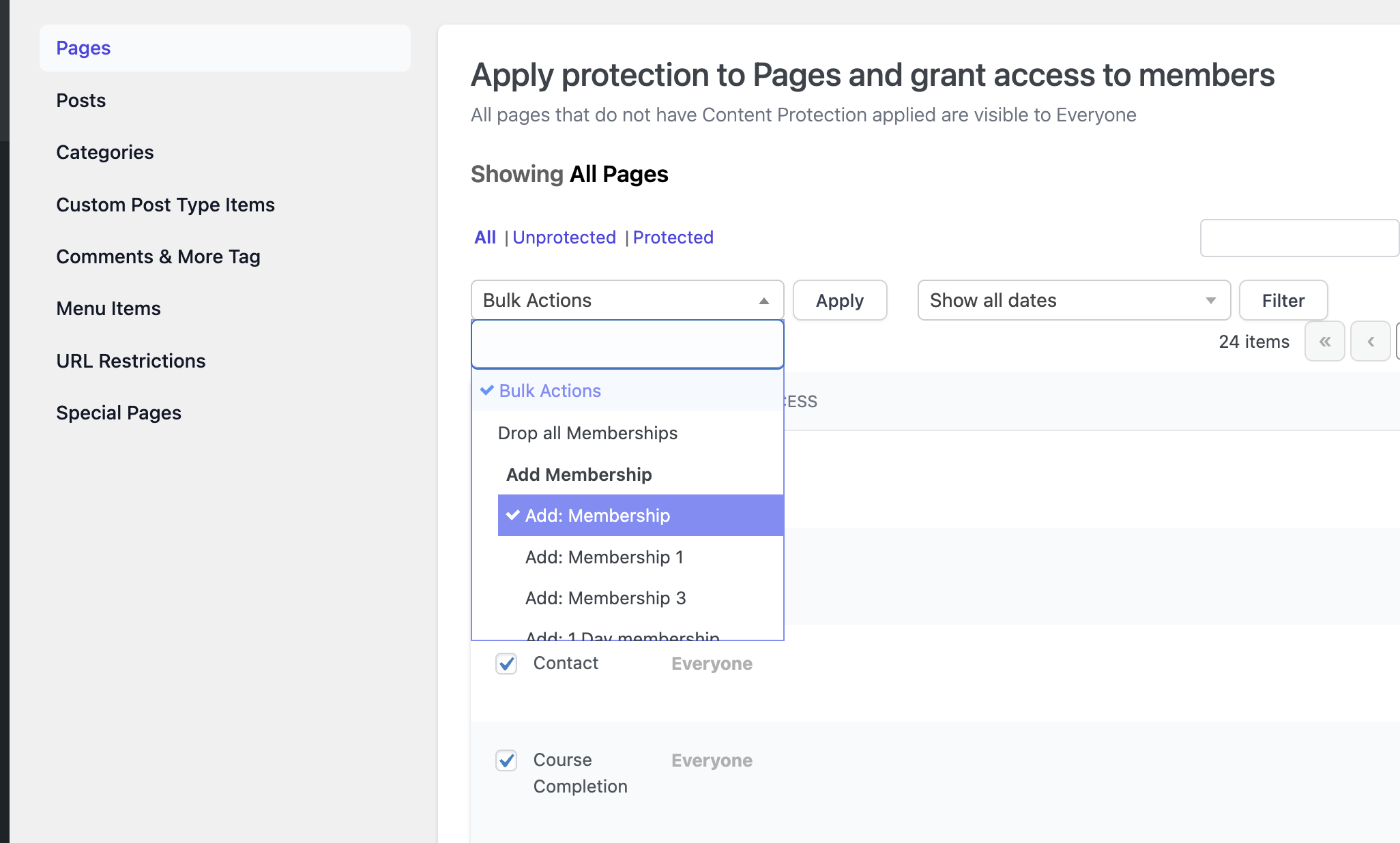
- You can also click Modify Access to manually select the membership from a dropdown.
Best for: Applying access rules to multiple posts, pages, or lessons at once.
Restricting Post Categories
To restrict an entire category of posts:
- Go to MemberDash > Protection Rules > Categories.
- Select the categories you want to protect.
- Use the Bulk Action drop-down to assign memberships.
- Alternatively, click Modify Access to select memberships individually.
All posts within the protected category will automatically follow the assigned access rules.
Restricting Comments & More Tag Content
You can also protect comments and content after the WordPress “More” tag:
- Navigate to MemberDash > Protection Rules > Custom & More Tags.
- Select the items you want to protect.
- Use the Bulk Action menu or the Modify Access option to assign memberships.
Restricting Menu Items
To limit access to specific menu items:
- Go to MemberDash > Protection Rules > Menu Items.
- Select the menu items to protect.
- Use Bulk Action or Modify Access to assign memberships.
Restricting URLs
You can restrict access to specific URLs on your site:
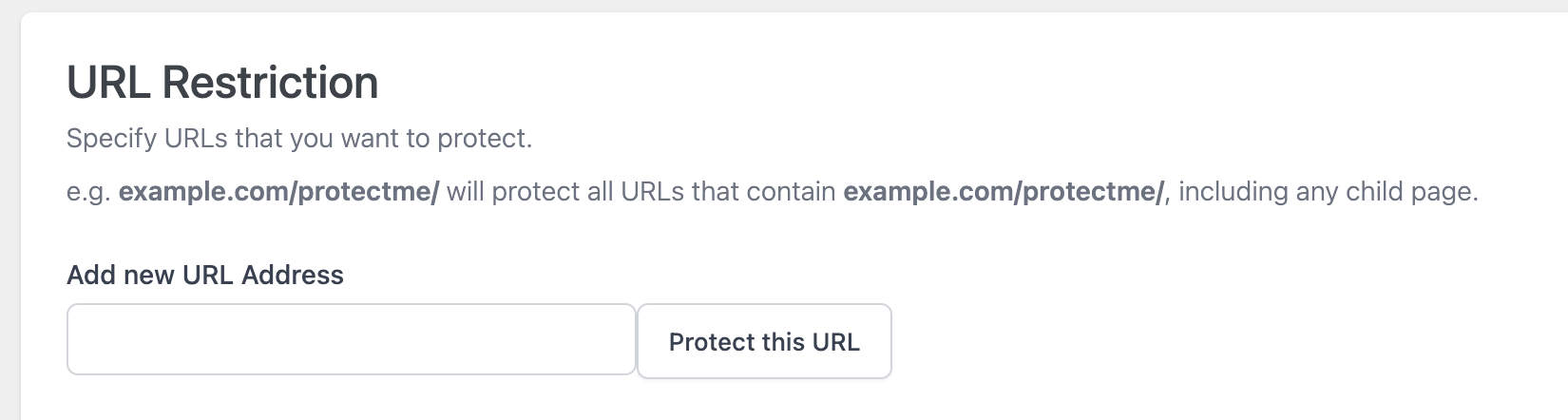
- Navigate to MemberDash > Protection Rules > URL Restrictions.
- Enter the URL you want to protect.
- Select Protect This URL.
- Click Modify Access and choose the applicable membership.
Restricting Special Pages
Special pages include archive pages, author listings, and similar dynamic pages:
- Go to MemberDash > Protection Rules > Special Pages.
- Select the pages to protect.
- Use Bulk Action or Modify Access to assign memberships.
Summary
MemberDash provides powerful, flexible tools to control content visibility across your LearnDash site. Whether you’re protecting individual posts, entire categories, menu items, or special pages, MemberDash’s membership-based access rules help you create tailored learning experiences.
Tip: For the best user journey, plan your content access strategy alongside your membership structure to ensure learners see the right content at the right time.