There may be times when you need to remove a membership from your site, such as when it’s no longer relevant or you’re reorganizing your membership structure. This guide explains how to safely delete a membership in MemberDash and outlines important considerations before doing so.
How to Delete a Membership
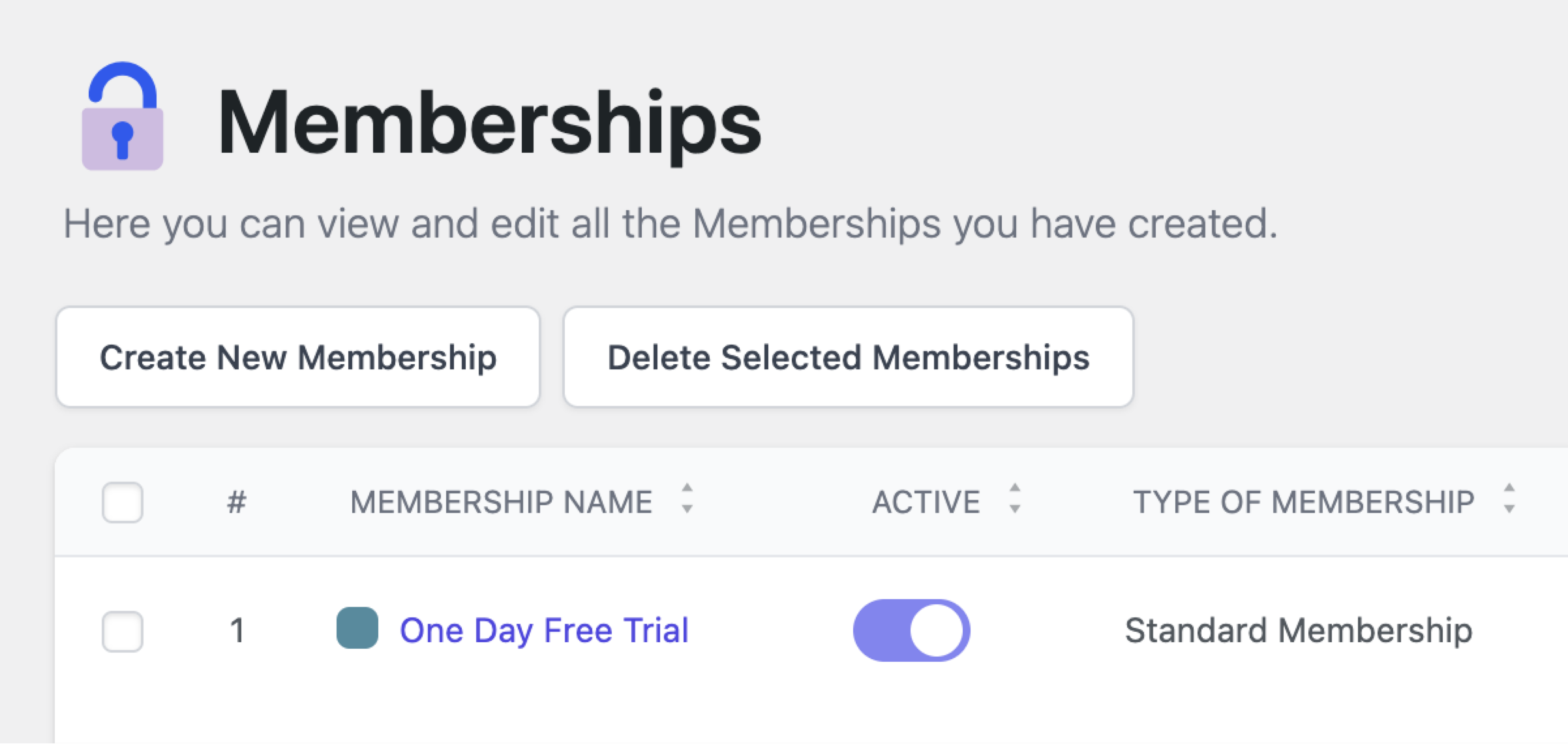
- In your WordPress Dashboard, go to MemberDash > Memberships.
- Hover over the membership you want to delete.
- Click the Delete option that appears.
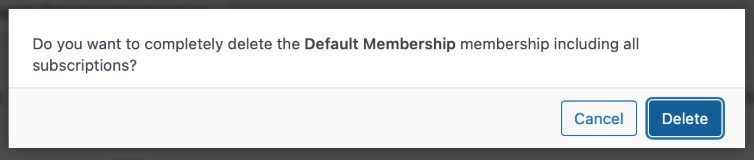
A confirmation modal will display the following message:
“Do you want to completely delete the [Membership Name] membership, including all subscriptions?”
If you are sure you want to proceed, click Delete to permanently remove the membership.
Important Considerations
- Deleting a Membership is Permanent:
Once a membership is deleted, it cannot be recovered. There is no trash or undo option. - All Associated Subscriptions Will Be Deleted:
Any users currently subscribed to this membership will immediately lose access, and their subscriptions will be permanently removed. - Recommended Best Practice:
If the membership is still in use or has active subscribers, consider editing the membership instead of deleting it to avoid service interruptions.
Conclusion
Deleting a membership should be done with caution, as it will permanently remove both the membership and all associated subscriptions. Always double-check if there are active users before proceeding. When in doubt, editing the membership is a safer alternative.
An on-screen modal will appear with the message “Do you want to completely delete the [Membership Name] membership including all subscriptions?“
If you are sure you want to delete the membership, click Delete to finalize it.
Note: Deleting a membership also deletes all associated subscriptions. If you have users subscribed to a membership, you may wish to Edit it instead.