Memberships in MemberDash can be edited at any time to adjust details, payment settings, access options, and more. This guide walks you through the different areas you can update within a membership and highlights key considerations to prevent disruption for existing subscribers.
Accessing Membership Edit Options
To edit a membership:
- Go to MemberDash > Memberships.
- Hover over the membership you want to edit.
- Choose one of the following:
- Access Options: Jump directly to access-related settings.
- Edit: Open the full membership editing interface.
Membership Details
When you click Edit, you’ll first land on the Details screen.
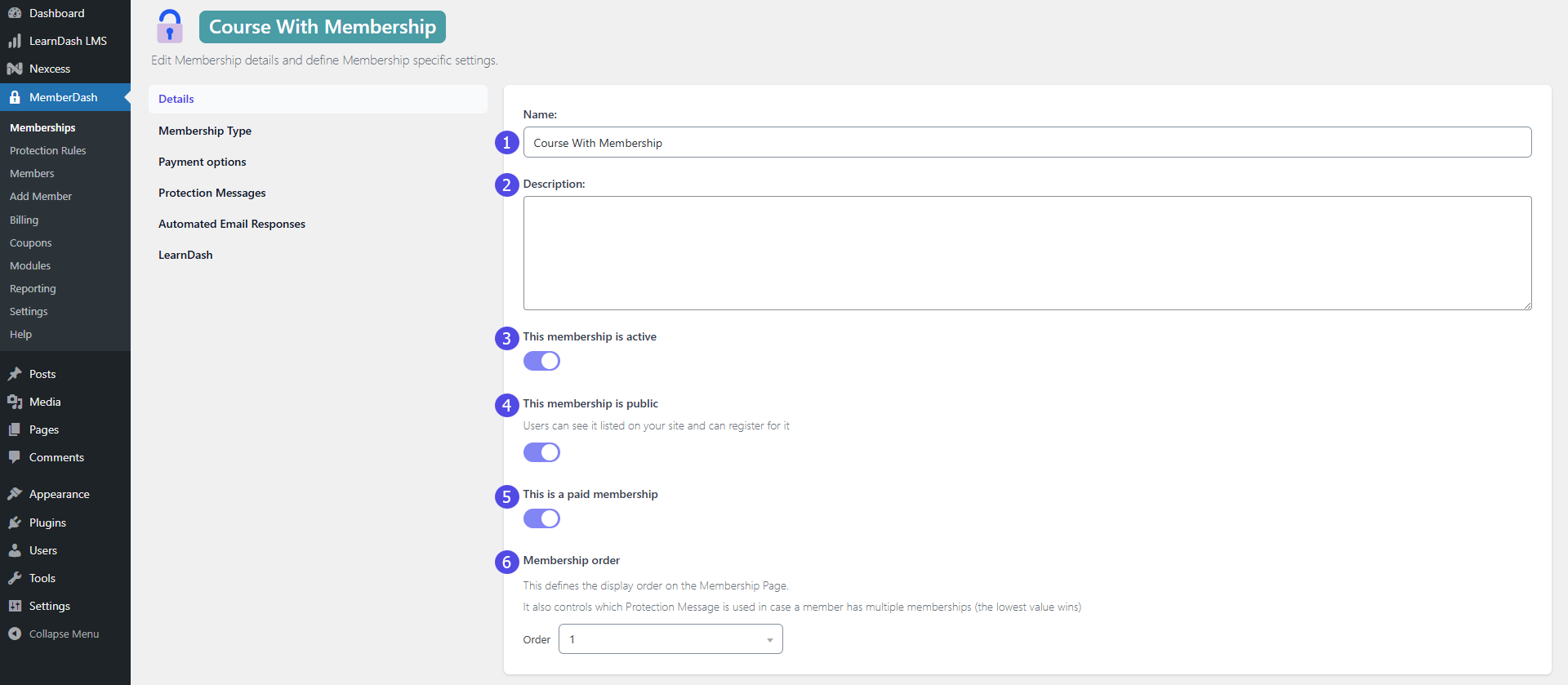
Editable Fields:
- Membership Name: You can update the name, but do so with caution—it may disrupt billing if users are actively subscribed.
- Description: Appears on the registration form, if used.
- Active State: Temporarily deactivate the membership; invoices will not be generated while inactive.
- Public State: Make the membership private to hide it from the registration form.
- Payment Status: Change from Paid to Free or vice versa.
- Membership Order: Adjust the display order on the registration form (alphabetical by default).
Membership Type
You can update the membership type to:
- Standard
- Dripped Content
- Guest
- Default
Important: Changing the membership type may affect existing Protection Rules. Review these rules carefully if you make changes.
Learn more about Membership Types here.
Access Options and Payment Options
Access Options:
Configure membership behavior, including:
- Access Structure
- After this Membership Ends (e.g., restrict access or assign another membership)
- Registration Redirect URL
- Login Redirect URL
- User Role Assignment for New Members
Note: Changes here only apply to new subscribers. Existing subscribers’ invoices and access settings will remain unchanged.
Payment Options:
Configure payment settings, including:
- Membership Requirements
- Setup Fee
- Payment Amount
- Registration Redirect URL
- Login Redirect URL
- User Role Assignment for New Members
Note: Like Access Options, payment changes will only affect new subscribers.
Upgrade Paths
The Upgrade Paths feature lets you control who is eligible to purchase the membership:
- You can restrict access to users with specific existing memberships or open it to the general public.
Note: If the Multiple Memberships Module is enabled via MemberDash > Modules, you’ll see additional options here.
Protection Messages
You can override the global Protection Messages for this specific membership.
To customize:
- Toggle Define Custom Message for any of the three available messages.
- Enter your custom text.
- Click Save to apply changes.
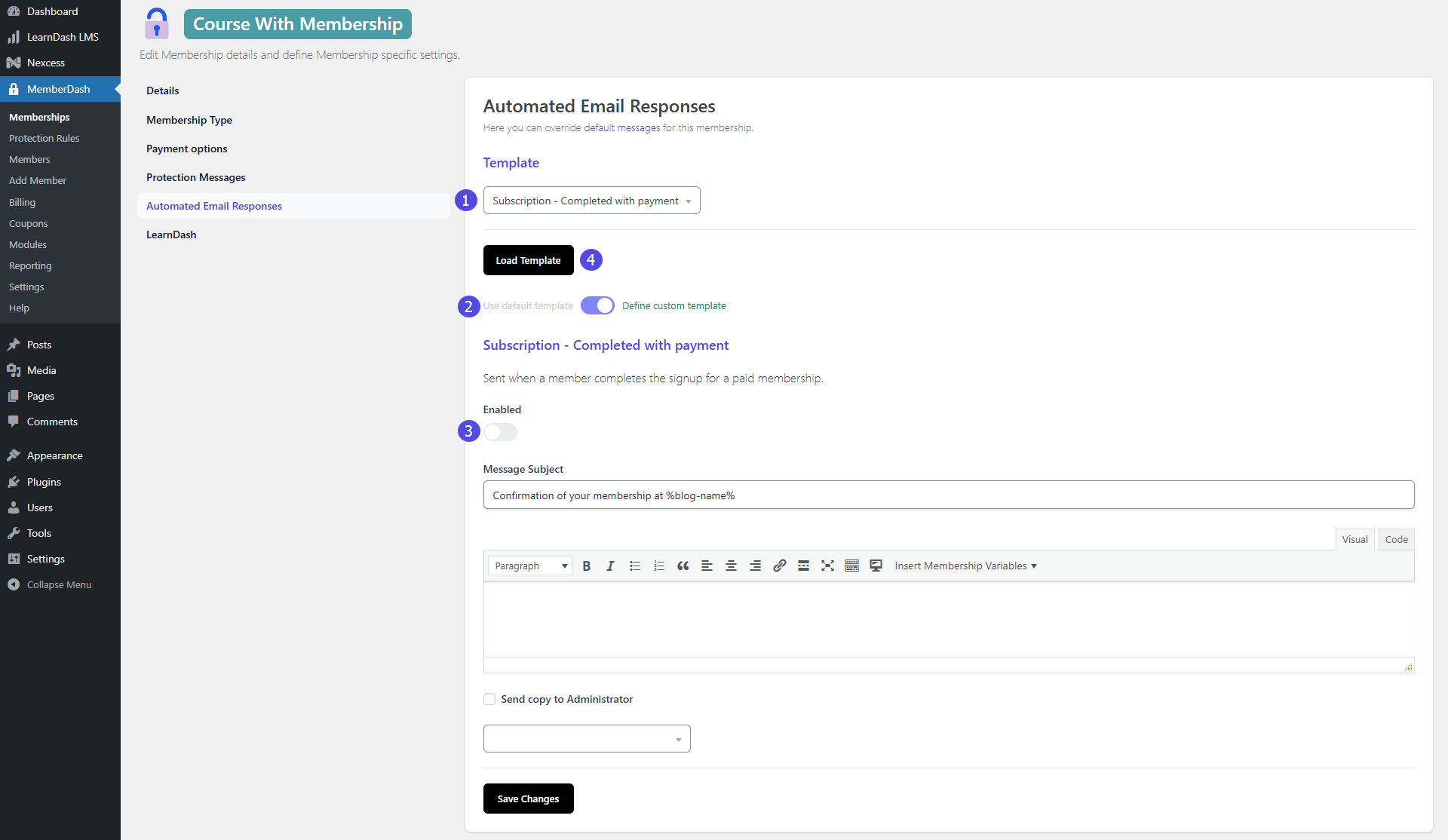
Automated Email Responses
Customize automated emails on a per-membership basis.
To edit:
- Click Automated Email Responses in the membership settings.
- Select a template from the dropdown menu.
- Toggle Define Custom Template to enable custom editing.
- (Optional) Click Load Template to pull in the default template as a starting point.
- Once complete, ensure the Enable Custom Template option is turned on.
- Click Save Changes when finished.
LearnDash Course Enrollment
You can automatically enroll members into LearnDash courses when they join this membership.
To assign courses:
- Click inside the white course selection box.
- Select the desired course from the dropdown list.
- Repeat to add multiple courses.
Conclusion
Editing memberships in MemberDash gives you full control over access, payment settings, and user experience—without affecting existing subscribers’ invoices. Always double-check membership type changes and protection rules to ensure smooth transitions. With MemberDash’s granular controls, you can fine-tune memberships to support your evolving content and access strategies.