Note: To view a list of all available modules and enable the ones you want, navigate to MemberDash >Modules
By default, MemberDash allows you to protect individual menu items behind a membership. This means you can show certain items in the menu to members while hiding them from non-members.
Enable this module if you would like to have the ability to replace an entire menu for your members.
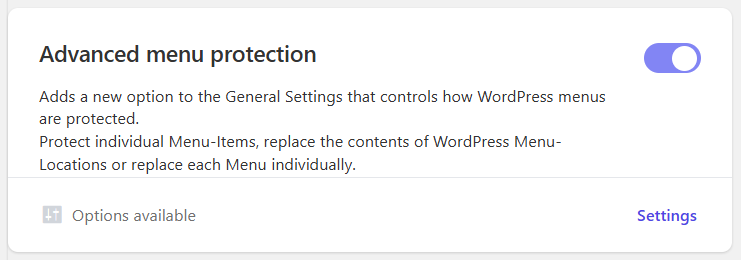
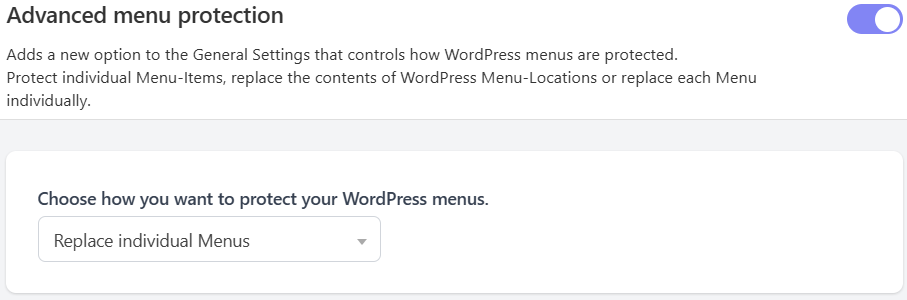
Once enabled, click on Settings in the add-on block, and in the drop-down select Replace individual menus.
Next, head on over to MemberDash > Protection Rules and click on Replace Menus.
Here you should see all the menus you’ve created.
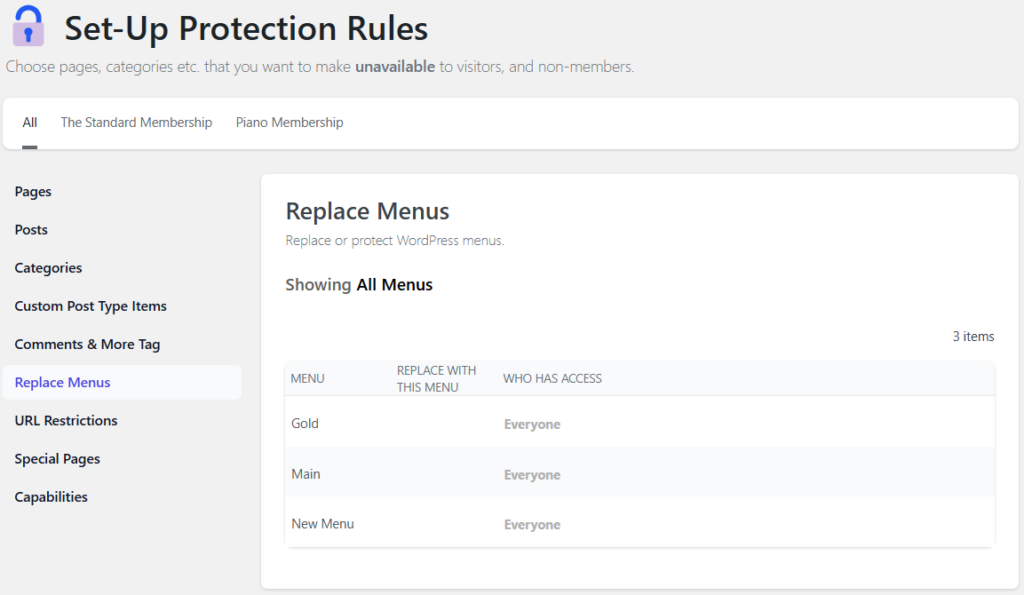
For example, you may have a primary menu visible to anybody who visits your website, and you’ve created another menu that you want only members to see. In this example, presume you have created a membership called “Gold” and named the menu you want Gold members to see as “Gold” and that your primary menu is called “Main”.
To replace the Main menu with the Gold menu for Gold members, hover over the Main menu and click on Modify Access.
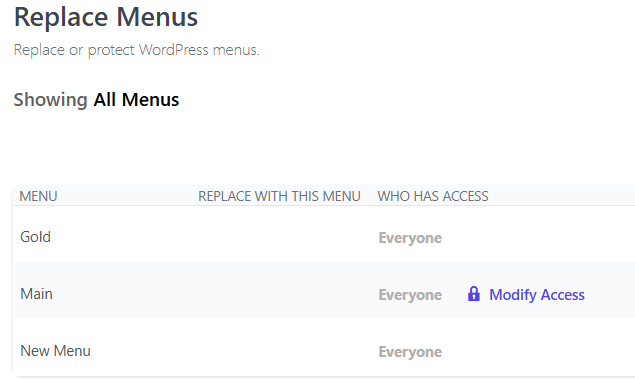
Here, you’ll want to select the Gold membership.
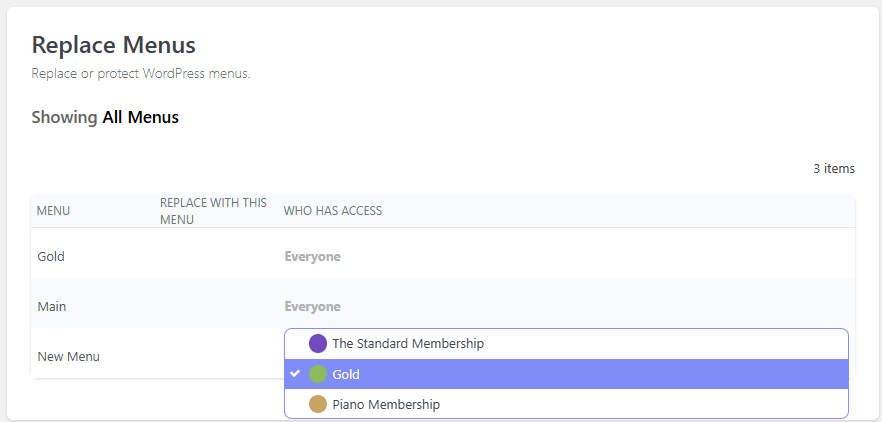
Then in the REPLACE WITH THIS MENU column, select the Gold menu.
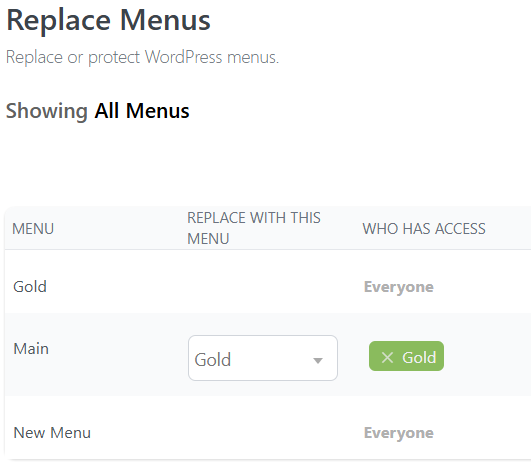
That is all! Now that you’ve saved these settings, all logged-out visitors will still see your Main menu like normal, but when Gold members log in, they’ll see the menu called Gold instead.
You can do this with multiple memberships and multiple menus.
You can also choose to show menus for specific members in specific menu locations.
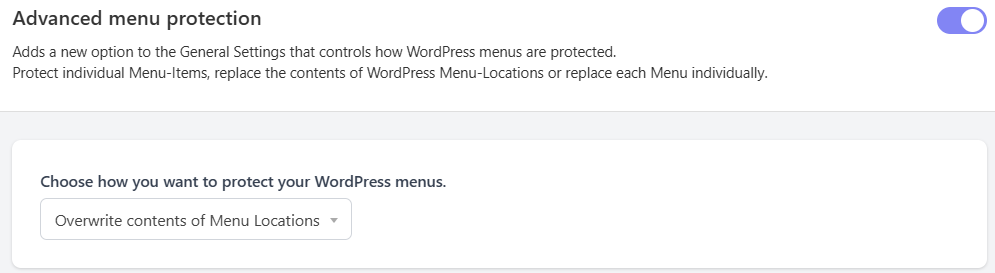
To do this, go back to the Advanced Menu Protection block in Add-ons and click on the Settings link. Next, choose Overwrite contents of menu location.
Next, navigate back to Protection Rules and click on Menu Locations.
From there, the process will be the same as before, but instead of replacing a menu with another menu, you will choose which menu to display in the target menu locations, along with specifying the relevant members.
For example, a theme may have 4 menu locations: Primary, Secondary, Mobile and Footer.
You can choose to display menus based on members and menu location.
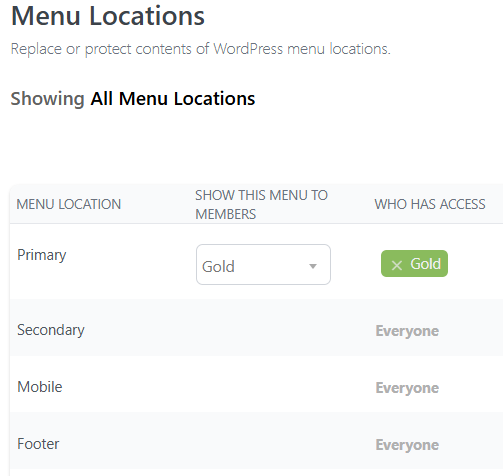
In this example, Gold members will see the Gold menu in the Primary position, but they will continue to see the Main menu in all other locations.